
Video content feels incomplete without sound. Even the most visually appealing video struggles to keep attention if audio is missing or poorly placed. That is why learning how to Add Music Canva Video correctly has become an essential skill for creators, brands, and marketers. Canva is now widely used across India for reels, ads, tutorials, and UGC Videos because it makes video creation easy and fast. However, many users still feel unsure about audio features. They often add random tracks, forget volume balance, or ignore timing completely. This detailed guide works as a practical Canva video music tutorial for beginners and professionals. You will learn how to add audio in Canva step by step, how to choosesuitable Canva backgroundmusic, and how to manage each Canva video audio track smoothly. By the end, you will know how to create a Canva video with music that feels clean, engaging, and professional.
- 1. Why Music Is Essential in Canva Videos
- 2. Understanding Canva’s Audio Features Before You Start
- 3. How to Add Music to Your Canva Video Step by Step
- 4. How to Add Audio in Canva Using Voiceovers
- 5. Insert Music Canva Video for Different Platforms
- 6. Common Mistakes People Make While Adding Music
- 7. Advanced Tips to Improve Canva Video Audio Quality
- 8. How Brands Use Canva Videos with Music Effectively
- 9. Canva Music and Influencer Marketing in India
- 10. Key Takeaways and Final Thoughts
- About Hobo.Video
1. Why Music Is Essential in Canva Videos
Music shapes emotion faster than visuals. Within the first few seconds, sound decides whether viewers feel curious, calm, or excited. That is why knowing how to add music to Canva video properly can dramatically improve performance. Videos with music generally achieve higher engagement and stronger recall. In the Indian context, music also carries cultural familiarity. Regional tones, soft lo-fi beats, or uplifting rhythms instantly influence trust and comfort. This matters greatly in influencer marketing and UGC Videos, where authenticity drives results. Many creators focus heavily on visuals and treat audio as an afterthought. That often leads to flat or forgettable content. A simple video paired with the right Canva background music usually performs better than a complex edits with poor sound. Learning how to control a Canva video audio track helps creators guide emotion, improve flow, and deliver a more professional viewing experience.
2. Understanding Canva’s Audio Features Before You Start
Canva keeps its audio tools simple, which makes the platform accessible to beginners while still supporting professional-quality results. Users can add background music, record voiceovers, or upload custom audio files directly into their projects. The Canva music library is built into the editor and offers thousands of tracks sorted by mood, genre, and pace. When you insert music Canva video using this library, licensing is handled automatically, reducing copyright risks. This is especially important for ads, branded videos, and influencer campaigns. Canva also allows users to add audio in Canva by uploading MP3 or WAV files. This option works well for brand jingles, voiceovers, or regional language content. Each Canva video audio track appears clearly on the timeline, making trimming, placement, and volume control easy even for first-time users.
3. How to Add Music to Your Canva Video Step by Step
3.1 Step One: Prepare Your Video Timeline First
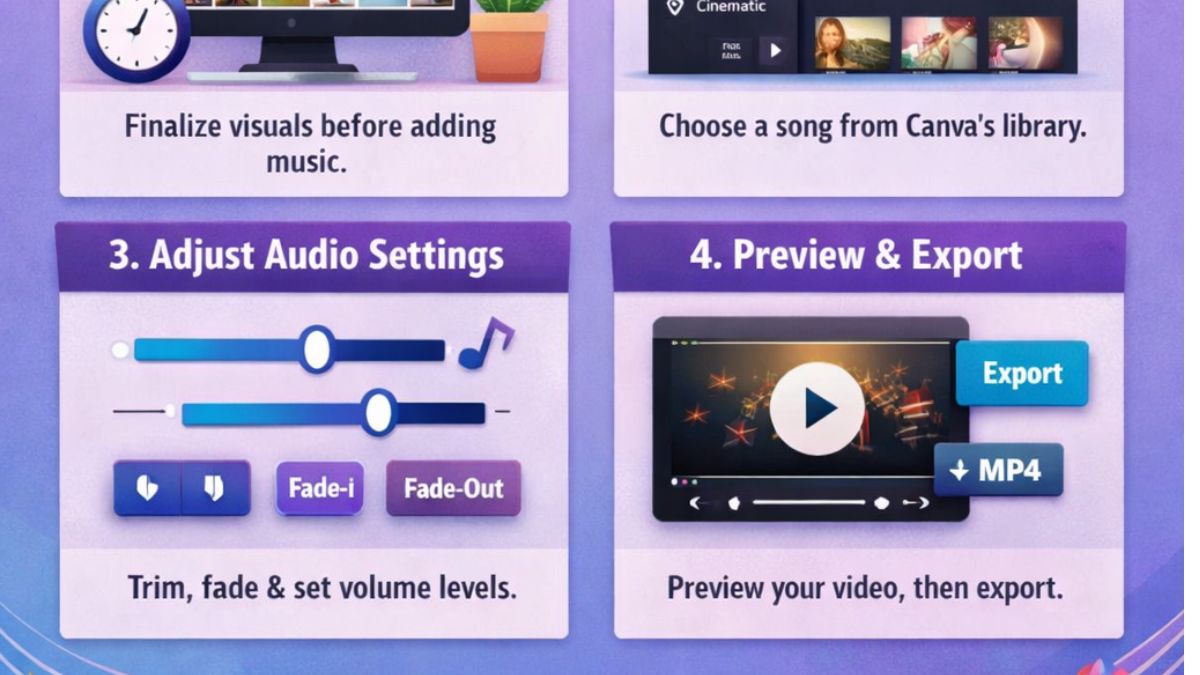
Before adding any music, complete your visual structure. Open your Canva video and review the entire timeline carefully. This step is essential for anyone learning how to add music to Canva video effectively. When visuals change after adding sound, audio timing often breaks, creating unnecessary rework. Finalizing visuals first helps maintain flow and rhythm. This approach works especially well for reels, ads, tutorials, and UGC Videos where pacing matters. Once your scenes are locked, you can Add Music Canva Video smoothly and with confidence. A clean visual timeline also makes it easier to manage each Canva video audio track later. This simple habit saves time and ensures your Canva video with music feels intentional rather than rushed.
3.2 Step Two: Choose Music from Canva Music Library
To begin adding sound, click on the Audio or Music tab on the left panel. This opens the Canva music library, where tracks are categorized by mood, genre, and tempo. Take time to explore and listen to full previews before deciding. The right Canva background music should enhance visuals without distracting from them. Influencer marketing videos often perform better with subtle and steady tracks rather than loud or dramatic sounds. Once you find a suitable track, click on it to add it to your video. You have now started to add music to Canva video correctly. Canva automatically adjusts the track length to match your video, which makes the process simple even for beginners. Choosing music thoughtfully helps your Canva video with music feel cohesive and emotionally aligned.
3.3 Step Three: Edit and Control the Audio Track
After adding music, refine the Canva video audio track carefully. Drag it along the timeline to match scene transitions. Trim any unnecessary sections that do not add value. Canva also provides fade-in and fade-out options, which help smooth transitions and avoid abrupt starts or endings. Volume control is one of the most important steps. Music that is too loud can overpower visuals and reduce clarity. Lower the volume when text or voice appears. Canva allows quick adjustments using simple sliders. This stage is where videos begin to feel professional. A well-edited Canva video with music flows naturally and feels comfortable to watch. Always preview your video before exporting to catch small issues that affect overall quality.
4. How to Add Audio in Canva Using Voiceovers
4.1 Recording Voice Directly Inside Canva
Canva allows users to record voiceovers directly inside the editor, which is useful for tutorials, explainers, and UGC Videos. To access this feature, go to Uploads and click on Record Yourself. Before recording, choose a quiet space to ensure clean audio. Clear voice builds trust faster than visuals alone. When you add audio in Canva through voice recording, focus on natural delivery rather than perfection. Once recorded, the voice appears as a separate Canva video audio track on the timeline. You can trim, move, and align it easily with visuals. Many creators prefer this method because it removes the need for external tools and keeps the entire editing process inside Canva, saving both time and effort

Amplify Your Brand,
One Influence at a Time.
4.2 Balancing Voice and Background Music Properly
A Canva video with music should always prioritize voice clarity. Background music must remain soft whenever speech is present. Reduce music volume and avoid tracks with heavy beats or frequent changes. This balance is especially important for influencer marketing India campaigns, where viewers value clear communication. When audio feels overwhelming, viewers often stop watching. Canva makes it easy to adjust volume levels for each track individually. Always test your video on mobile devices before publishing, since most Indian audiences consume content on phones. If the voice sounds clear on small speakers, your mix works well. Proper balance between voice and Canva background music improves professionalism, viewer comfort, and overall engagement across platforms.
5. Insert Music Canva Video for Different Platforms
5.1 Music for Instagram Reels and Shorts
Short-form contentrelies heavily on sound to capture attention quickly. When you insert music Canva video for Instagram reels or Shorts, choose tracks that feel energetic but relevant to the message. Instagram data shows that reels with audio receive higher engagement compared to silent content. Canva music library offers short loops that work well for this format. Align beat drops with visual changes to create a stronger impact. This technique works for both creators and brands. A well-timed Canva video with music feels dynamic and scroll-stopping. Keep reels between 15 and 30 seconds and avoid cluttered audio choices. Simple, rhythmic tracks usually perform best in fast-scrolling environments.
5.2 Music for YouTube Videos and Brand Content
YouTube audiences expect clarity and consistency. When you add music to Canva video for YouTube, choose calm and neutral tracks that do not distract from narration. Loud or dramatic music often reduces watch time. Brand explainers and tutorials perform better with soft Canva background music that supports the message. Canva exports clean audio quality, making it suitable for professional brand use. Always preview the final output before publishing. A controlled Canva video audio track improves credibility and viewer trust. This approach works well for presentations, ads, tutorials, and long-form brand content where clarity and professionalism matter more than dramatic sound effects.
6. Common Mistakes People Make While Adding Music
One common mistake is selecting music without listening to the full track. Music must match the tone, pace, and purpose of the video. Random choices weaken impact. Another frequent issue is ignoring volume control. Loud music can confuse viewers and hide important information. Over 70% of Indian audienceswatch social media videos with sound, making music critical for engagement. Always adjust sound levels when you add audio to Canva video. Brand mismatch is also risky. Wellness brands need calm sounds, while fashion or fitness brands may suit upbeat tracks. Influencer marketing campaigns often fail when sound contradicts visuals. Finally, avoid uploading copyrighted music without permission. Canva music library exists to protect creators. Smart audio choices lead to better engagement and stronger Canva video with music performance.
7. Advanced Tips to Improve Canva Video Audio Quality
Looping music smoothly helps longer videos feel consistent. Canva allows users to extend tracks without noticeable breaks. This avoids awkward silence or sudden endings. Use multiple audio tracks carefully. Voice, background music, and sound effects should support each other rather than compete. Keep your timeline organized to avoid confusion during edits. Testing audio on different devices is equally important. A track that sounds fine on headphones may feel too loud on mobile speakers. Always check before exporting. These small refinements in managing a Canva video audio track often separate beginners from confident creators. Better sound control leads to higher quality, better retention, and improved audience trust.
8. How Brands Use Canva Videos with Music Effectively
Brands use Canva because it allows fast production without sacrificing consistency. Video marketing continues to grow, and most brands now rely on video as a core content format. UGC Videos created using Canva video with music feel more authentic and relatable than overly polished ads. Music adds emotional depth that visuals alone cannot deliver. Many brand campaigns begin as Canva drafts before scaling into paid promotions. Sound quality plays a major role in how audiences perceive these videos. Brands that understand how to add music to Canva video move faster and maintain quality across platforms. This approach helps teams create more content without increasing production costs. you can explore this guide byHubSpot on video marketing effectiveness.
9. Canva Music and Influencer Marketing in India
India’s influencer economy is expanding rapidly, with short-form video leading growth. Music-driven content dominates feeds across platforms. Creators who understand how to add audio in Canva deliver more consistent and professional content. Brands prefer influencers who can manage basic production standards independently. Canva simplifies audio editing, making it easier for creators to produce quality content regularly. A clean Canva video audio track improves engagement, retention, and conversion rates. Sound control has become an essential skill for modern creators who want to grow sustainably. Learning these basics helps influencers stand out in a competitive market while maintaining authenticity and creative freedom.
10. Key Takeaways and Final Thoughts
Music is no longer optional in video content. It defines emotion, clarity, and connection. When you Add Music Canva Video correctly, your content feels complete and trustworthy. Focus on balance, timing, and relevance. Use Canva’s tools thoughtfully and always test before publishing. Small habits such as volume control, fades, and track selection make a significant difference. For deeper insights into how video and audio impact engagement, you can explore this guide by HubSpot on video marketing effectiveness. Mastering how to add music to Canva video is a simple skill that delivers long-term creative value for creators, brands, and marketers alike.
About Hobo.Video
Hobo.Videois India’s leading AI-powered influencer marketing and UGC company. With over 2.25 million creators, it offers end-to-end campaign management designed for brand growth. The platform combines AI and human strategy for maximum ROI.
Services include:
- Influencer marketing
- UGC content creation
- Celebrity endorsements
- Product feedback and testing
- Marketplace and seller reputation management
- Regional and niche influencer campaigns
Trusted by brands like Himalaya, Wipro, Symphony, Baidyanath, and the Good Glamm Group.
Growth isn’t magic—it’s strategy, creativity, and the right people. If you’re serious about scaling,reach out to us now.
The collabs are real. The payouts are real. All that’s missing is you.Let’s go.
FAQs
1. How do I add music to my Canva video quickly?
Open your Canva video, go to the Audio tab, select a track from the Canva music library, or upload your own. Drag it onto the timeline, adjust volume, and trim as needed. This simple process lets you add music to Canva video efficiently and professionally.
2. Can I use my own songs in Canva videos safely?
Yes. Canva allows uploading MP3 or WAV files. Make sure you own the rights to avoid copyright issues. Uploaded tracks can be trimmed, looped, and synced perfectly with visuals to create high-quality Canva video with music.
3. How to balance voiceovers and music in Canva?
Lower the background music volume whenever a voiceover is present. Use Canva’s volume sliders for each audio track. This ensures clarity, engagement, and a professional feel in tutorials, ads, or influencer UGC Videos.
4. Can I trim and loop music in Canva videos?
Yes. Canva lets you trim, split, and loop tracks on the timeline. Looping works well for longer videos, while trimming ensures your music aligns perfectly with scene transitions, making your Canva video with music seamless.
5. Is Canva music safe to use on YouTube and social media?
Yes. Tracks from Canva’s built-in library are pre-licensed for online use, including Instagram, YouTube, and brand campaigns. Using Canva music avoids copyright claims while enhancing your video’s engagement and watch time.
6. What type of music works best for Instagram reels?
Short, upbeat, and rhythmic tracks perform best. Align beats with visual transitions for maximum impact. Canva’s library has loops and short tracks ideal for reels, increasing engagement and retention for influencer and brand content.
7. How to preview music before adding it to Canva video?
Click on the track in the Canva music library to listen to a preview. Always preview full tracks to ensure the mood, tempo, and style fit your video before syncing with visuals.
8. Can I add multiple audio tracks in one Canva video?
Yes. You can combine background music, voiceovers, and sound effects. Adjust volume levels carefully to ensure each track complements the others, making your Canva video with music balanced and professional.
9. How do I make my Canva video with music more engaging?
Use fades, trim unnecessary audio, align beats with scene changes, and balance volume with voiceovers. Properly synced Canva video audio tracks increase watch time, retention, and overall viewer satisfaction.
10. What are the common mistakes to avoid when adding music to Canva?
Avoid random track selection, high volume, ignoring voiceovers, and uploading copyrighted music. Always preview on mobile devices to ensure your Canva video with music is clear, balanced, and engaging.

 Vishnumaya